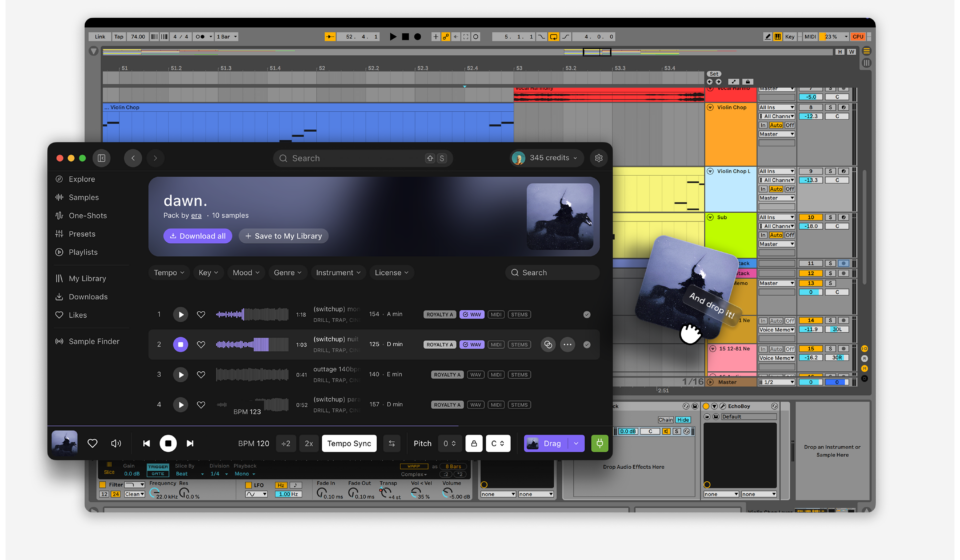

We’ve just launched the new WAVS desktop app. It comes with a companion DAW Bridge plugin that keeps WAVS connected to your session in real time.
Together, the app and DAW bridge let you browse our catalog, audition samples at your project’s tempo and key, and even sync playback to your DAW playhead. Drag samples straight onto your timeline without the hassle of toggling between project, browser, and local folders.
This has been one of our most requested features and we’re excited to finally ship it.
Why We Built the WAVS Standalone App
The WAVS website has its own advantages, like browsing casually from your phone or laptop. But once it’s time to start making music, web browsers do have their limitations.
People wanted a way to drag-and-drop of samples right into their DAW. Otherwise, after downloading they had to find the file in your local folder and import it from there. When they were looking for a sample, it took time to dig through local folders and find them.
We realized that a standalone app would solve that problem and take things further, beyond simple drag-and-drop solutions. Our team has developed real-time sync features, so that as you’re browsing WAVS, you can hear how a sample will fit into the track before you commit to it.
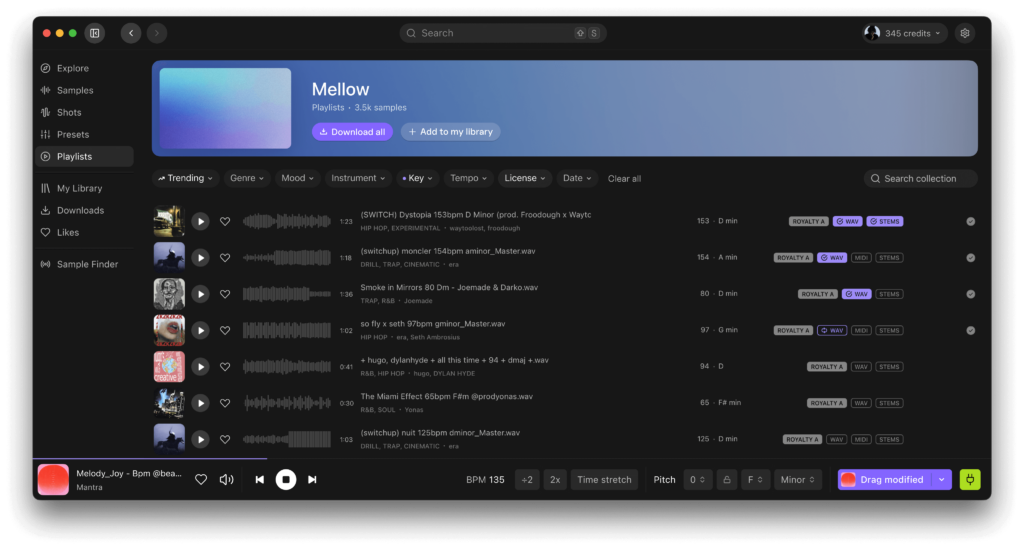
Easy to install and start using immediately
To get started, download the installer from our website at https://wavs.com/app. We have options available for both MacOS and Windows. When you run the installer, the desktop app and DAW Bridge will both be installed and placed in the appropriate locations automatically.
Next, open your DAW and the standalone app. Create an empty instrument track and arm it with the WAVS DAW bridge. Be sure that audio output has been turned on, so you can hear sample playback. The actual plugin interface is straightforward and you’ll be told whether it’s connected.
Check the “plug” icon in the bottom right corner of the app. If it’s green, that means you’re connected. If not, click on it to connect the standalone to your DAW bridge.
Three things our Desktop App can do that browsers can’t
Tempo Sync
The WAVS tempo sync feature is brand new. It detects your project’s BPM and sends it to the desktop app in real time. Changes to your DAW tempo will cause WAVS samples to time stretch instantly to match. You can audition in half-time, double-time, or even play samples in reverse.
Key Transposition
Select your project’s root note in the desktop app, and every sample you preview gets pitch-shifted to that key automatically. If you need finer control, you can manually transpose up or down by semitones.
One tip: use the key signature filter on the sample explorer page to narrow results to major or minor. Otherwise you might be auditioning F major samples over an F minor project.
Playhead Sync
Press play anywhere on your DAW’s timeline and the WAVS sample starts from the same position in the measure. If you drop in mid-bar, the sample picks up mid-bar. This is huge for hearing how a loop actually grooves against what you’ve already got down, rather than always starting from beat one.
Drag the Original or the Modified Version
The app gives you two options for drag-and-drop: Load the original, unmodified sample or the version that was modified to fit your project tempo and key.
Here’s how you drag samples into your DAW timeline:
- Download a WAVS sample or click the Downloads tab on the left navigation menu to access audio files you’ve purchased in the past.
- Hit the “sync” button located in the bottom right corner of the app. You won’t need to do this if you’re downloading it for the first time, but if you purchased a sound previously from the website, this step will be necessary. You can sync all sounds at once, by clicking the Settings gear in the upper right corner of the app and then clicking “Sync Sounds”.
- Once a sample or one-shot has been synced, the download/sync button will be replaced with a Drag button. Click the arrow to choose between original or modified version. Then click and drag that sample over to your audio timeline.
System Requirements
The desktop app requires Windows 10 or newer, or macOS 12 or newer. The Bridge plugin is included in the installation and runs as a standard VST/AU instrument in any major DAW, including Logic Pro, Ableton Live, FL Studio, Pro Tools, Cubase, Reaper, and others.
The WAVS Bridge should not be confused with our earlier WAVS VST plugin. Our Bridge plugin handles the connection between standalone app and your DAW. The original VST loaded our full WAVS interface inside the DAW. That’s still available and still works exactly as before, but we feel strongly that the desktop app is a better experience.
Download the desktop app and bridge here if you’re already an active user or visit wavs.com to start a free trial. You’ll need a paid subscription to use the app.