WAVS Desktop App + DAW Bridge
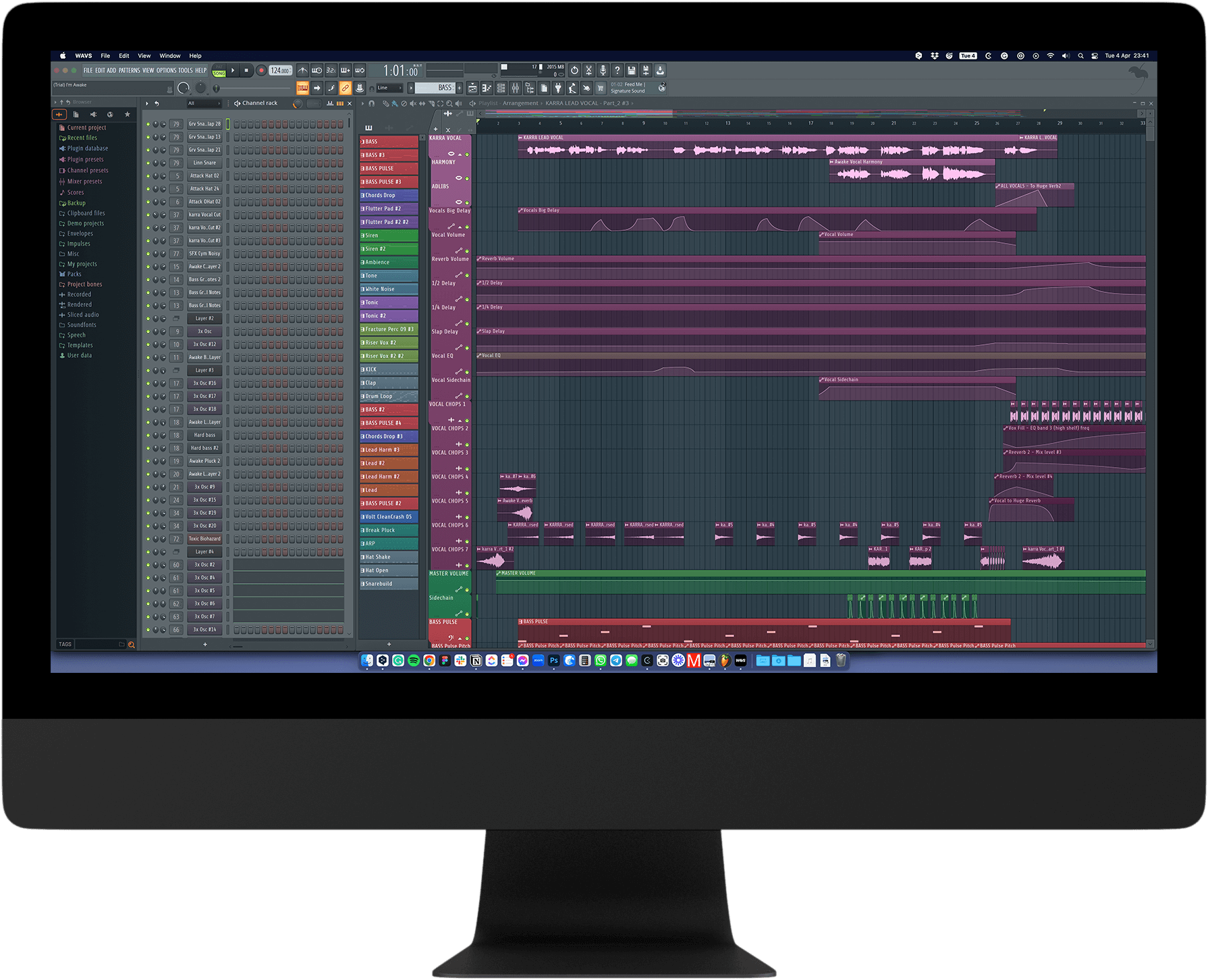
Web browsers don't support the option to drag-and-drop audio into a DAW. So we built a standalone app and VST to solve that for you.
Playhead Sync
Select a sample and press play in your DAW to hear them in sync
Tempo Sync
Time-stretch samples to match your project BPM and play on beat
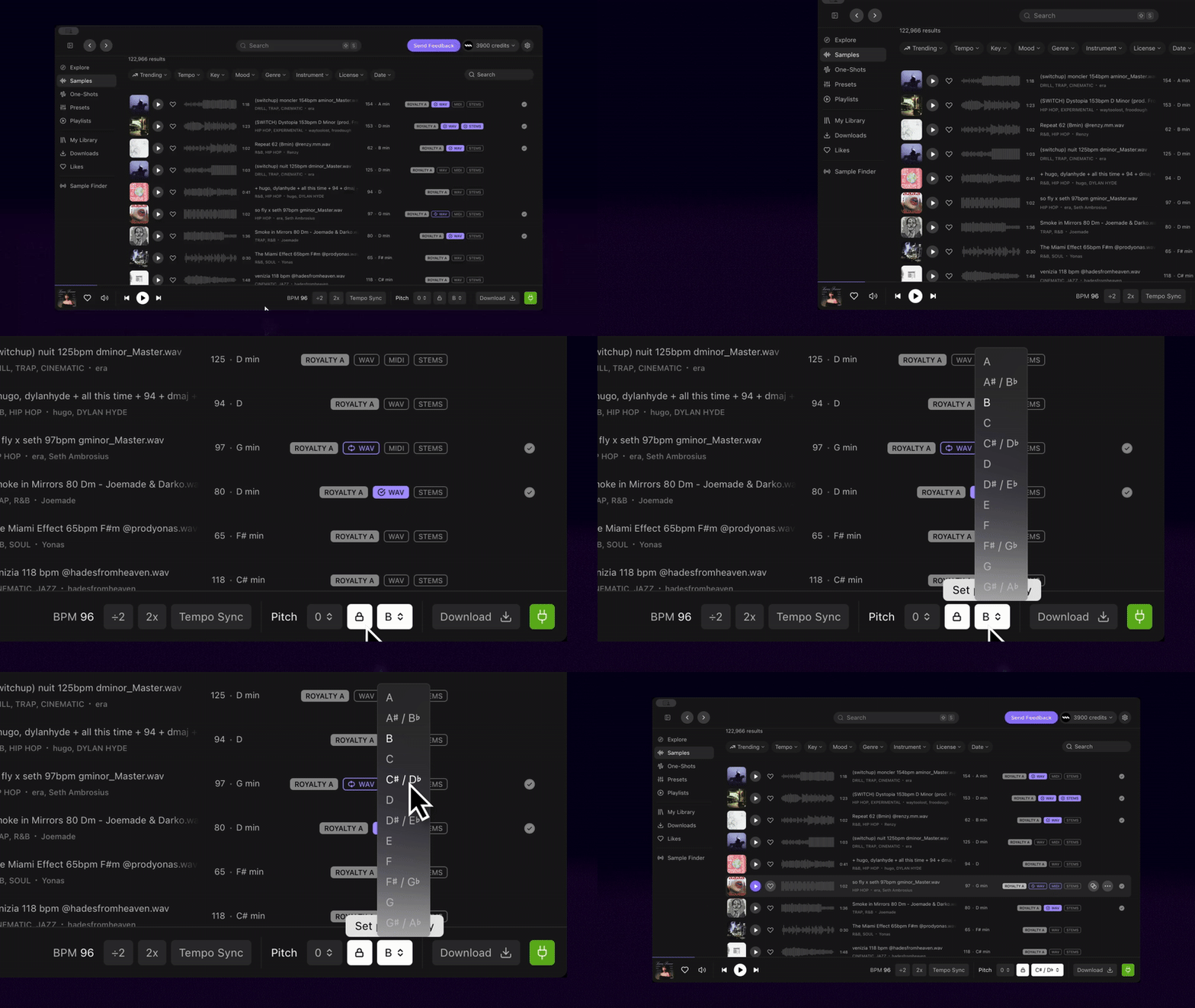
Transpose Key
Audition samples instantly in the key that fits your project
Drag-n-Drop
Drag and drop samples straight from the app into your DAW

FAQ
Yes. The Desktop App connects with your DAW through the included Bridge VST plugin, which provides real-time key and tempo sync. You can also drag and drop samples directly into your DAW from the app.
You’ll need Windows 10 (or newer) or macOS 12 (or newer).
Yes, the original WAVS VST Plugin is included in your installation. This plugin loads directly inside your DAW. It was the original solution that we built, but we had users requesting a standalone app so we made both options available. Please do not confuse the WAVS VST with the DAW bridge plugin. The latter is used solely to connect the standalone app to your DAW and has no other features of its own.
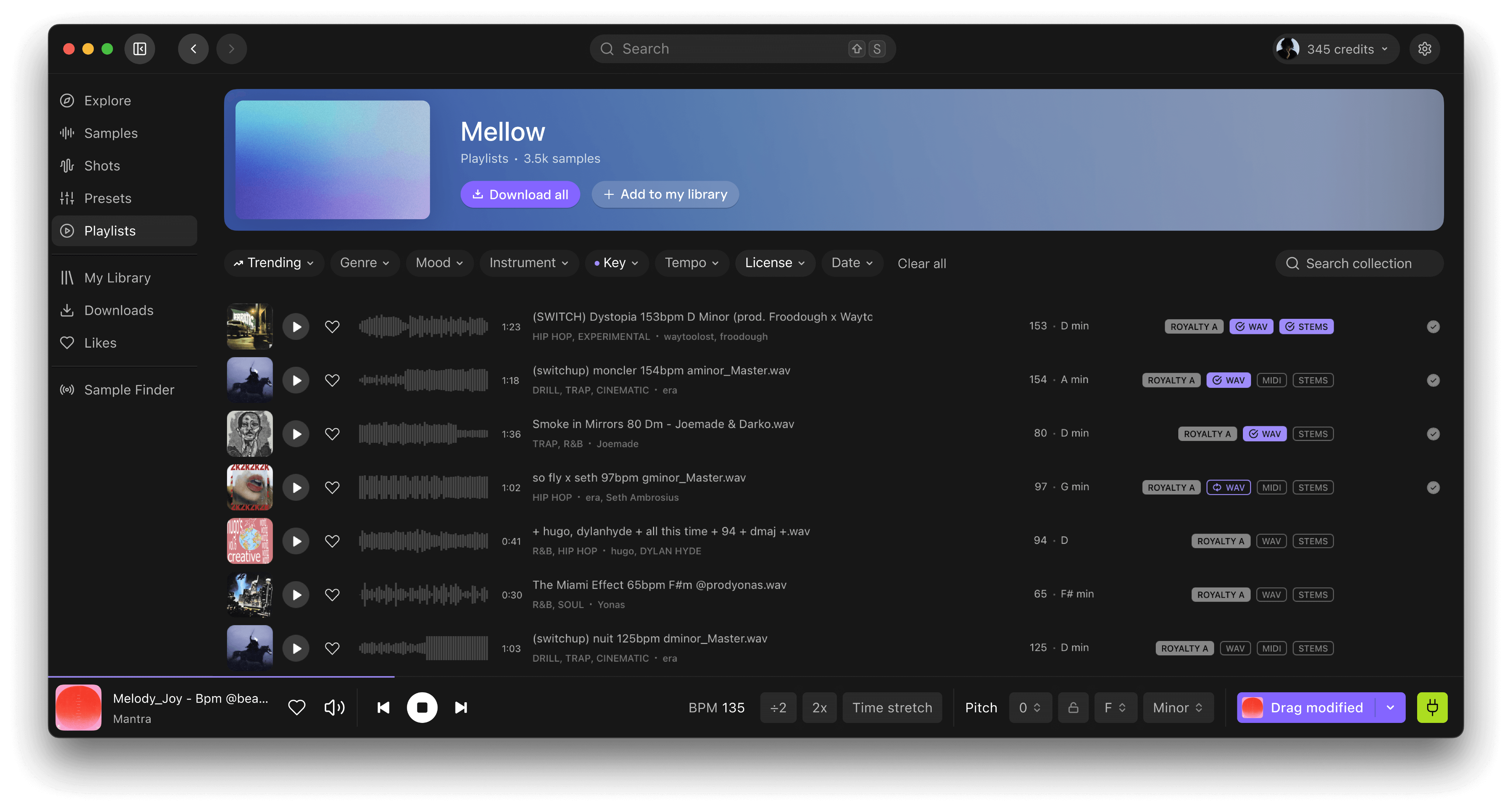
First, insert an instrument track in your DAW and assign the WAVS Bridge as your instrument. Make sure audio output is turned on, so you can hear sample playback. The DAW bridge plugin will tell you if it’s connected or not. You can toggle back to the standalone app and check the “plug” icon in the bottom right corner as well. If it’s green, that means you’re connected. If not, click on it to connect the standalone to your DAW bridge.
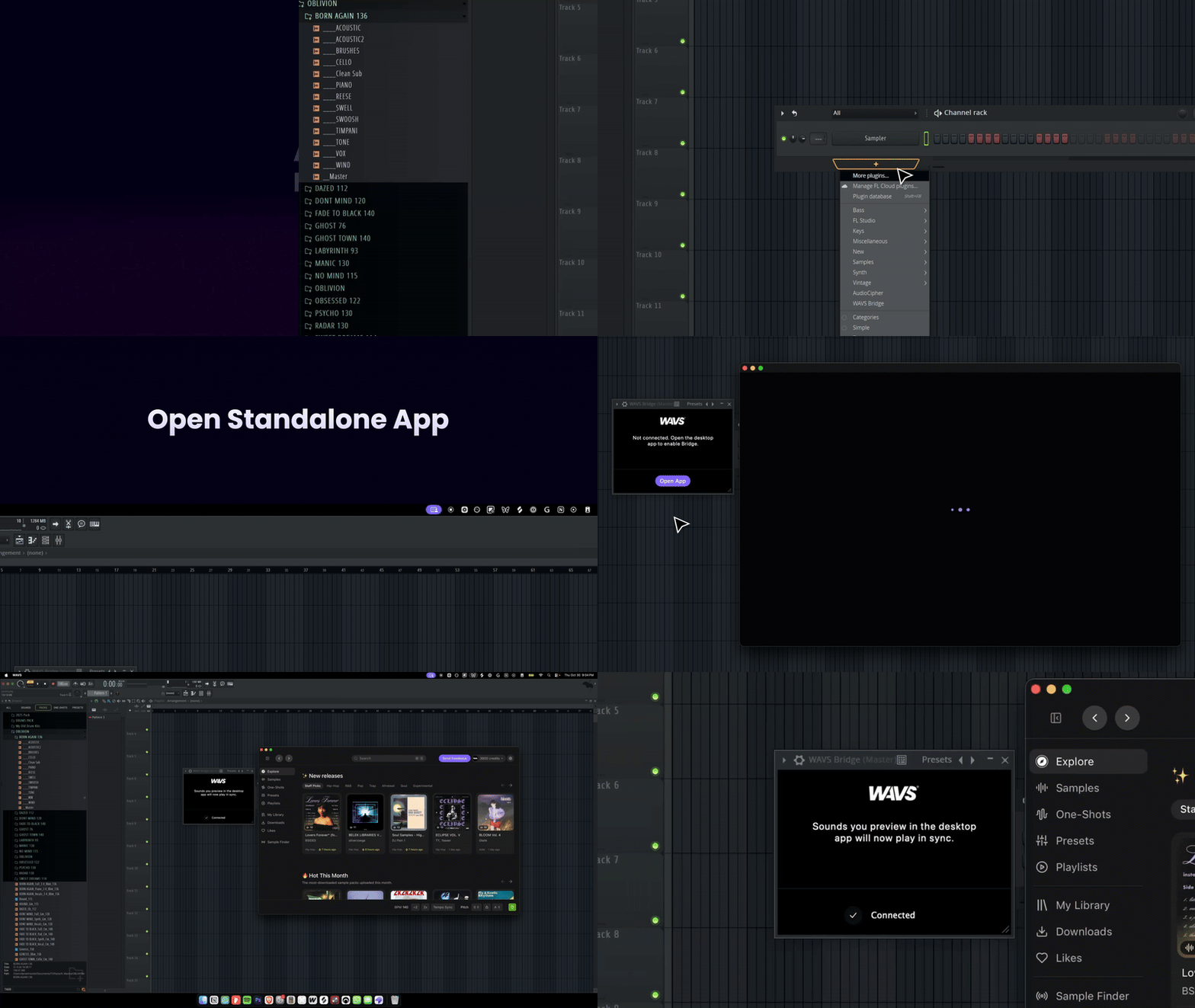
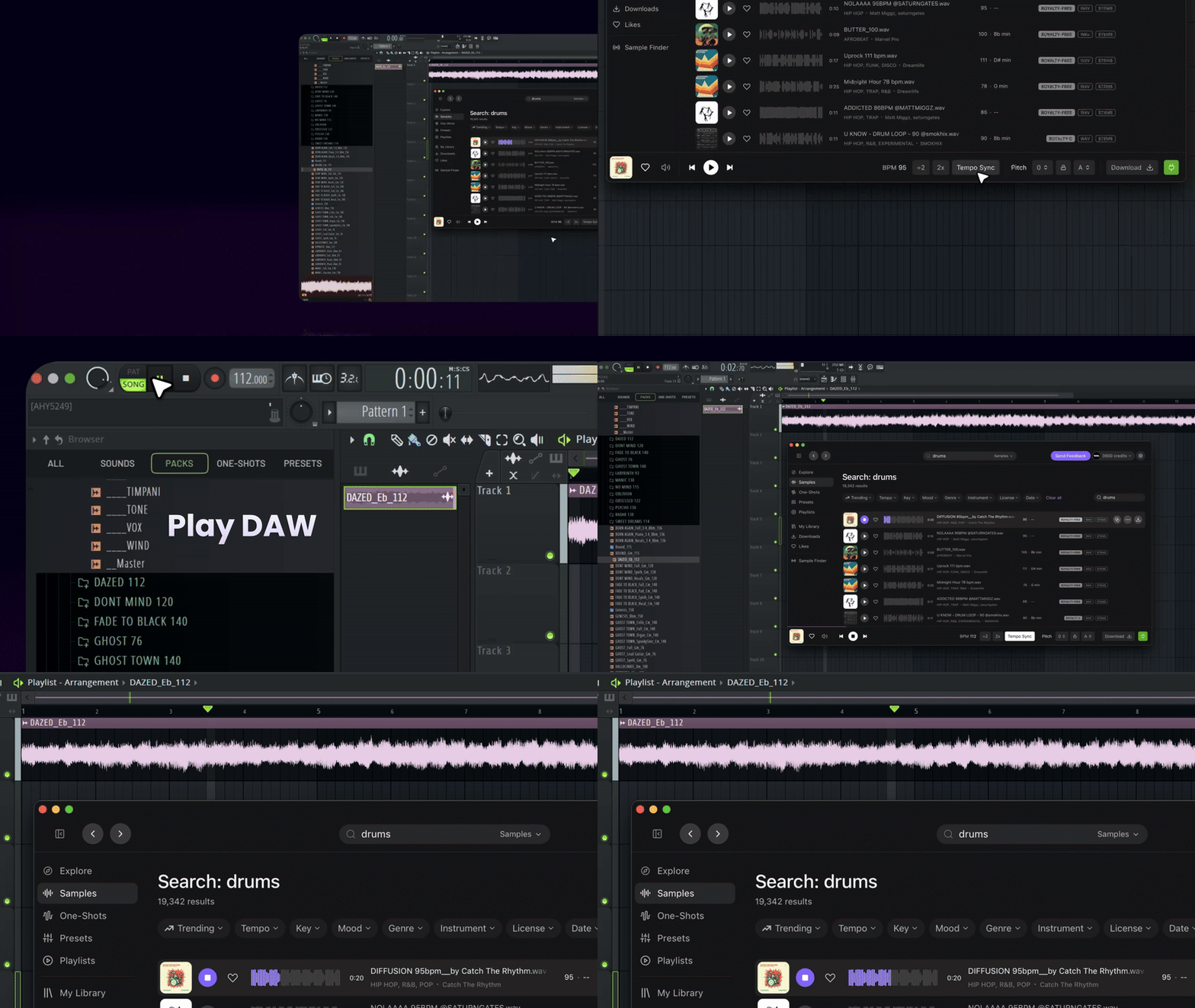
After establishing a connection between the standalone app and your DAW. Press play on a WAVS sample to load it and then press play anywhere on your DAW’s audio timeline. The sample will align with your playhead position, based on the DAW’s beats and measures. If you start playback mid-measure, the WAVS sample will start at the same point mid-measure.
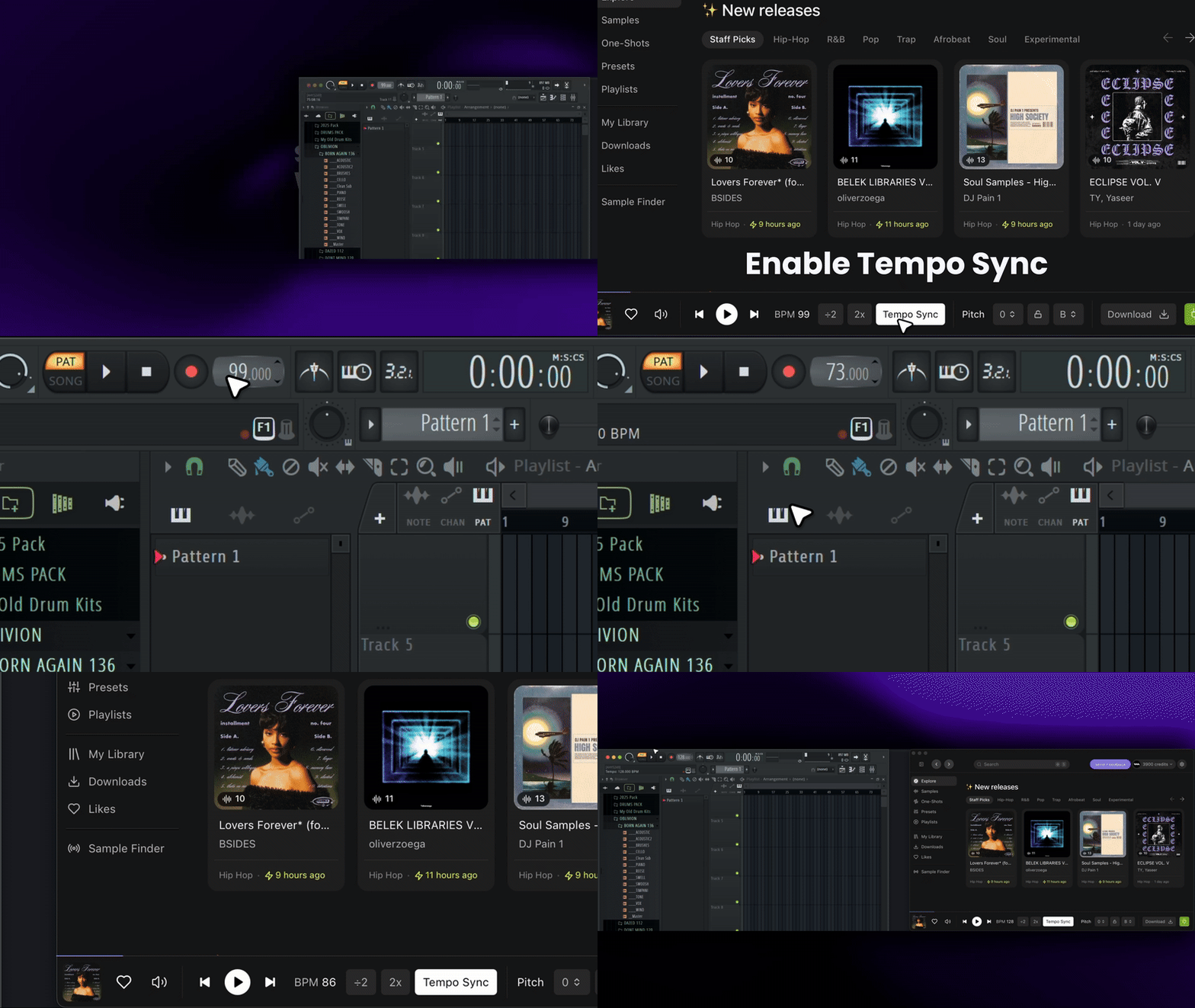
Make sure your WAVS standalone app is connected via the DAW bridge. Then in your standalone app, click the “Tempo Sync” button at the center of the bottom toolbar. Now press play on any sample and toggle over to the BPM settings in your DAW. As you modify the DAW’s project tempo, you will hear that the samples time-stretch in real time to adapt.
Begin by syncing the standalone app with your DAW, using the WAVS DAW bridge. Assuming that you already know the key signature you’re in, all you need to do is select the root note in the bottom right corner of the standalone app. The color will change and a lock icon will also illuminate, indicating that the tonal center of any WAVS sample will now be transposed to the appropriate note. You can use the pitch selector to further transpose that sample up or down by +-12 semitones.
We recommend filtering samples on the sample explorer page, using the key signature filter to select “major” or “minor”. Otherwise you might be auditioning samples in F major for a DAW project that’s in F minor.
If you drag the sample directly from the browser window, WAVS will assume you want the original rather than the new modified (tempo stretched, key transposed) version. So instead, please click the “drag” button on your standalone app’s bottom toolbar. Then click “drag modified” and drag that audio file into an audio track in your DAW.